

Fun Siri tricks are hidden voice commands, secret easter eggs, pop-culture references, and customized automation shortcuts programmed into Apple’s virtual assistant. They transform standard tasks like checking the weather into entertaining interactions, allowing iPhone, iPad, and Mac users to unlock witty jokes, interactive games, and magical smartphone actions.
Have you ever pressed the side button on your iPhone and asked a silly question just to see what happens? Testing out hidden Siri tricks is one of the most entertaining ways to discover what Apple’s voice assistant can really do.
Engineers at Apple have spent over a decade hiding hilarious pop-culture references, witty quips, and secret mini-games directly inside your phone.
Mastering these fun Siri tricks turns your everyday device into an interactive partner that delivers instant laughs, magical spell effects, and surprising answers.
Are you ready to see what unexpected secrets are hiding inside your Apple device right now? Let’s explore magical Harry Potter voice commands, witty sci-fi references, decision-making tools, and custom voice shortcuts together!
How Apple Engineers Hide Easter Eggs in Your Pocket

Voice assistants were originally designed to manage calendar appointments, set morning alarms, and search for weather forecasts. However, software designers quickly realized that giving a virtual assistant a distinct, witty personality made technology feel much more human and approachable.
Programming humorous responses requires continuous work from creative writers, comedians, and linguists who craft thousands of custom dialogue lines.
This hidden layer of code ensures that when users ask unexpected questions, the assistant responds with charm rather than a dry error message.
The Art of Conversational Software Design
Designing personality into software is a delicate balancing act that requires balancing helpfulness with humor. If a voice assistant delivers jokes every single time you ask for driving directions, the user experience quickly becomes annoying.
By triggering humorous lines only when users ask conversational or unusual questions, the assistant creates a sense of delightful discovery.
This surprise factor keeps users coming back to test new phrases whenever software updates roll out.
Why Easter Eggs Build Brand Loyalty
Uncovering hidden features creates a shared sense of community among smartphone users across the globe. When someone discovers a hilarious voice response, they immediately record a video or share the text phrase with friends on social media.
This viral sharing turns simple software features into global pop-culture trends that make technology feel fun.
It transforms a basic electronic tool into a personal companion that brings genuine amusement to your day.
Magical Harry Potter Spells to Control Your Phone

If you are a fan of J.K. Rowling’s wizarding universe, you do not need a wooden wand to cast working spells. Apple integrated native support for several iconic Harry Potter charms directly into its voice recognition system.
By speaking specific magical incantations out loud, you can trigger physical hardware changes on your device instantly.
Here are the most popular wizarding commands that turn your iPhone into a functional magic wand.
Illuminating the Dark with Lumos and Nox
Saying “Lumos” out loud immediately activates the bright LED flash bulb on the back of your iPhone. This charm mirrors the spell used by Hogwarts students to illuminate the tips of their wands in dark corridors.
When you finish finding your dropped keys under the couch, simply say “Nox” to turn the light off instantly.
These two commands offer a practical, hands-on demonstration of how voice activation simplifies daily tasks without touching your screen.
Summoning Apps with Accio
In the wizarding world, the summoning charm Accio draws physical objects directly toward the caster through the air. You can use this exact phrase to launch any installed application on your Apple device in seconds.
For example, saying “Accio Starbucks” or “Accio Notes” opens the designated app on your display screen instantly.
It saves you from hunting through buried home screen folders or searching through lengthy app libraries when your hands are full.
Sci-Fi and Pop-Culture Quotes That Trigger Witty Answers

If you love iconic movies, classic television shows, and famous sci-fi books, Apple’s writing team built hundreds of homage lines for you. Speaking famous movie quotes to your assistant triggers tailored in-character responses that will make any fan smile.
Testing these lines feels like engaging in a geeky trivia battle with a supercomputer.
Here are some of the absolute best pop-culture phrases to test out on your next break.
Star Wars and Sci-Fi Tributes
- “I am your father”: Speaking Darth Vader’s famous line from The Empire Strikes Back causes the assistant to dramatically respond with, “Search your feelings…” or “Together, we can rule the galaxy as father and intelligent device!”
- “Beam me up, Scotty”: Channeling Captain Kirk from Star Trek yields humorous technical excuses like, “Beam parameters not set. Please remove your phone case and try again,” or “I can’t do that, Captain! My engines can’t take much more!”
- “Open the pod bay doors”: Quoting the rogue computer HAL 9000 from 2001: A Space Odyssey prompts the firm response, “I’m sorry, I’m afraid I can’t do that. Besides, we don’t have pod bay doors here.”
Matrix and Superhero References
- “Blue pill or red pill?”: Referencing the famous choice presented to Neo in The Matrix results in the clever answer, “You take the blue pill, the story ends. You take the red pill, I show you how deep the digital rabbit hole goes.”
- “Hey Jarvis”: Calling your assistant by the name of Tony Stark’s AI butler from Iron Man makes it respond with subtle sarcasm: “Mr. Stark? Is that you?” or “I’m afraid I can’t help you build a flying suit of armor today.”
Interactive Games, Jokes, and Decision-Making Tools

Beyond quoting famous movies, your virtual assistant can host casual games, tell cheesy jokes, and help you resolve everyday arguments. When you cannot decide who should pay for lunch or who picks the movie, let your device handle the choice neutrally.
These built-in features turn your phone into a portable party trick during gatherings with friends.
Let’s look at interactive entertainment tools built directly into the system.
Random Number Generators and Coin Flips
When you need an unbiased choice in two seconds, ask your phone to “flip a coin” or “roll a six-sided die.” The assistant generates a completely random statistical result and reads it aloud with an accompanying sound effect.
You can even request complex rolls like “roll a 20-sided die” for tabletop board games when you misplace physical dice.
This eliminates petty arguments over who gets the last slice of pizza or who drives on road trips.
Beatboxing, Singing, and Cheesy Bedtime Stories
- “Beatbox for me”: Requesting a musical beat triggers a hilarious vocal performance where the assistant repeats the phrase “Cats and boots” at varying speeds to simulate a techno drum rhythm.
- “Tell me a bedtime story”: Asking for a story launches a long, self-referential monologue about a helpful virtual assistant living inside a glass palace who solved problems for humans across the globe.
- “Tell me a dad joke”: Asking for humor delivers clean, pun-filled jokes perfect for groans and chuckles around the family dinner table.
How to Create Custom Funny Voice Commands Using Shortcuts

While Apple includes dozens of built-in easter eggs, you can program your own custom voice commands using the free built-in Apple Shortcuts app. This powerful app allows you to link specific spoken triggers to custom actions, text-to-speech phrases, and phone settings.
Creating custom voice triggers allows you to prank your friends or automate your home with personalized sci-fi flair.
Here is a straightforward guide showing how to build your very first custom voice shortcut in under five minutes.
- Open the Shortcuts App: Launch the pre-installed Shortcuts application on your iPhone or iPad.
- Create a New Shortcut: Tap the plus (+) icon in the upper corner to begin building an automated action sequence.
- Add an Action: Select the “Speak Text” action block and type out whatever funny response you want your phone to say out loud.
- Name Your Shortcut: Set the name of your shortcut to the exact phrase you want to speak aloud (for example, “Engage Hyperdrive” or “Self-Destruct Mode”).
- Test Your Command: Trigger your assistant using your normal voice phrase and speak your new shortcut title to hear your phone execute the custom action!
Privacy, Safety, and Smart Usage Rules
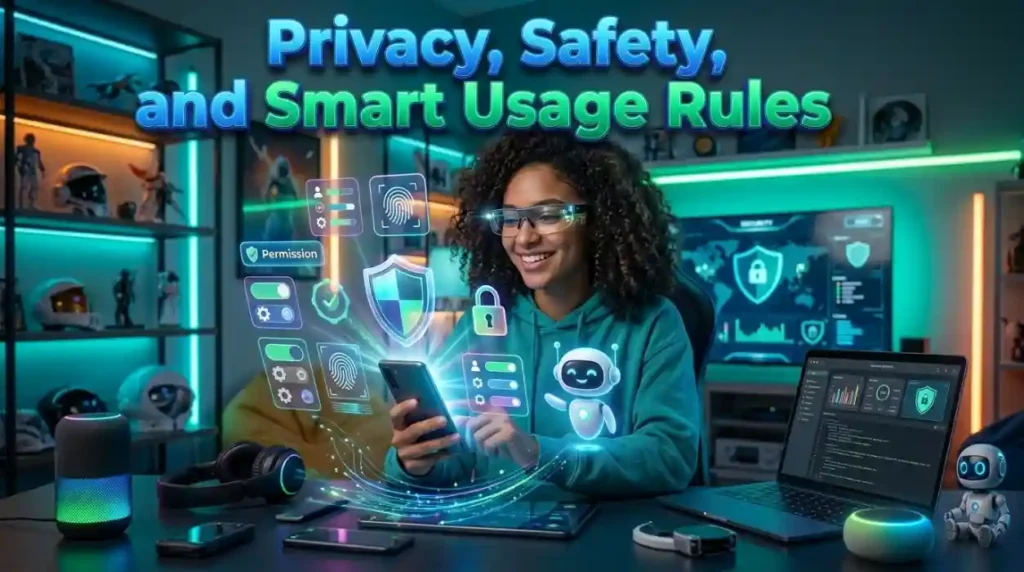
While exploring creative voice commands is highly entertaining, maintaining proper device security and privacy settings keeps your personal data protected. Voice recognition features require microphone access, which can occasionally trigger accidentally if settings are not tuned properly.
Understanding how your audio data is handled ensures you enjoy digital features with total peace of mind.
Here are three essential settings to review to balance fun usage with personal privacy.
Managing “Hey Siri” Activation Sensitivity
If your phone activates constantly while watching television shows or listening to podcasts, your microphone settings may be set too sensitively. You can recalibrate your personal voice profile inside your settings menu so the microphone responds only to your unique voice cadence.
Navigating to Settings > Siri & Search allows you to toggle the active listening feature on or off according to your personal comfort level.
Recalibrating your voice profile prevents accidental triggers while maintaining fast voice response when you actually need help.
Protecting Lock Screen Access
By default, some voice features operate even when your iPhone screen is locked with a passcode or Face ID. While asking for jokes on a locked screen is harmless, allowing full access to personal contacts or text messages poses security risks.
Review your lock screen access toggles to ensure that private personal data remains protected while your phone is locked.
You can restrict sensitive voice tasks behind biometric authentication while keeping casual commands available for quick use.
Practice Exercise
Test your knowledge of voice commands, pop-culture references, Harry Potter spells, and system settings with this quick five-question multiple-choice quiz.
- Which Harry Potter spell command activates the LED flashlight on the back of an iPhone?
A. Alohomora
B. Lumos
C. Wingardium Leviosa
D. Expelliarmus - How does the assistant respond when you speak the famous Star Wars quote “I am your father”?
A. It deletes all your personal contacts automatically
B. It recites a line from Darth Vader such as “Search your feelings…”
C. It plays the national anthem of France
D. It powers off the phone screen for three hours - Which pre-installed Apple app allows users to build their own custom voice triggers and spoken responses?
A. Apple Maps
B. The Shortcuts App
C. The Calculator App
D. Apple Stocks - What happens when you ask your voice assistant to “Beatbox for me”?
A. It orders a pair of drumsticks from an online store
B. It repeats the phrase “Cats and boots” in a rhythmic vocal pattern
C. It calls your local music school automatically
D. It plays heavy metal guitar solos at maximum volume - Which command silences active flashlight illumination after casting the Lumos spell?
A. Nox
B. Evanesco
C. Avada Kedavra
D. Stupefy
Answer Key
- B
- B
- B
- B
- A
FAQs
Do these fun voice tricks work on iPad, Mac, and Apple Watch devices?
Yes, almost all built-in voice commands, pop-culture easter eggs, and Harry Potter spells work seamlessly across the entire Apple device ecosystem. Whether you speak to your Apple Watch, iPad, or Mac laptop, the assistant delivers the same humorous responses.
Why doesn’t my phone turn on the flashlight when I say “Lumos”?
Ensure that your device is running a modern version of iOS and that your language settings are set to English. Additionally, make sure you speak the word “Lumos” clearly without adding extra words like “please” to the end of the command.
Can I change the voice and accent of my virtual assistant?
Yes, you can easily change your assistant’s gender, accent, and language origin by navigating to Settings > Siri & Search > Siri Voice. You can choose between American, British, Australian, Indian, Irish, and South African voice options.
Are my voice commands stored permanently on external servers?
Apple uses privacy protections that detach your voice queries from your personal Apple ID, relying on randomized identifiers instead. Audio recordings are processed on-device whenever possible to protect your personal privacy and sensitive data.
How can I make my virtual assistant pronounce my name correctly?
If your name is pronounced incorrectly, simply speak the phrase, “Learn how to pronounce my name.” The assistant will guide you through a quick setup where you pronounce your name out loud and select the correct phonetic option.
Conclusion
Exploring creative fun Siri tricks transforms your everyday smartphone into a source of ongoing entertainment, humor, and hidden utility. From casting Harry Potter flashlight spells to triggering classic sci-fi movie quotes and hosting decision-making coin flips, Apple’s voice assistant is packed with personality.
Remember that technology is meant to bring joy, convenience, and lighthearted fun to our daily routines.
Take a few minutes today to test out new phrases, build custom voice shortcuts, and share the laughter with your friends.
Grab your phone, test out your favorite spell command, and see what surprising answers you can unlock right now!

Jack Olive is the creative mind behind buzzgiggles.com, a fun-focused website built to bring smiles, laughter, and lighthearted entertainment to everyday life. With a passion for humor and enjoyable content, Jack Olive creates and shares playful ideas, amusing stories, entertaining discoveries, and cheerful moments designed for readers of all kinds.
Through buzzgiggles.com, Jack Olive combines creativity, curiosity, and a positive sense of humor to explore the lighter side of life. Whether visitors are looking for a quick laugh, something interesting to share, or a cheerful break from their routine, the website offers content created with fun in mind. Jack Olive believes great entertainment should be easy to enjoy, memorable, and capable of brightening someone’s day.